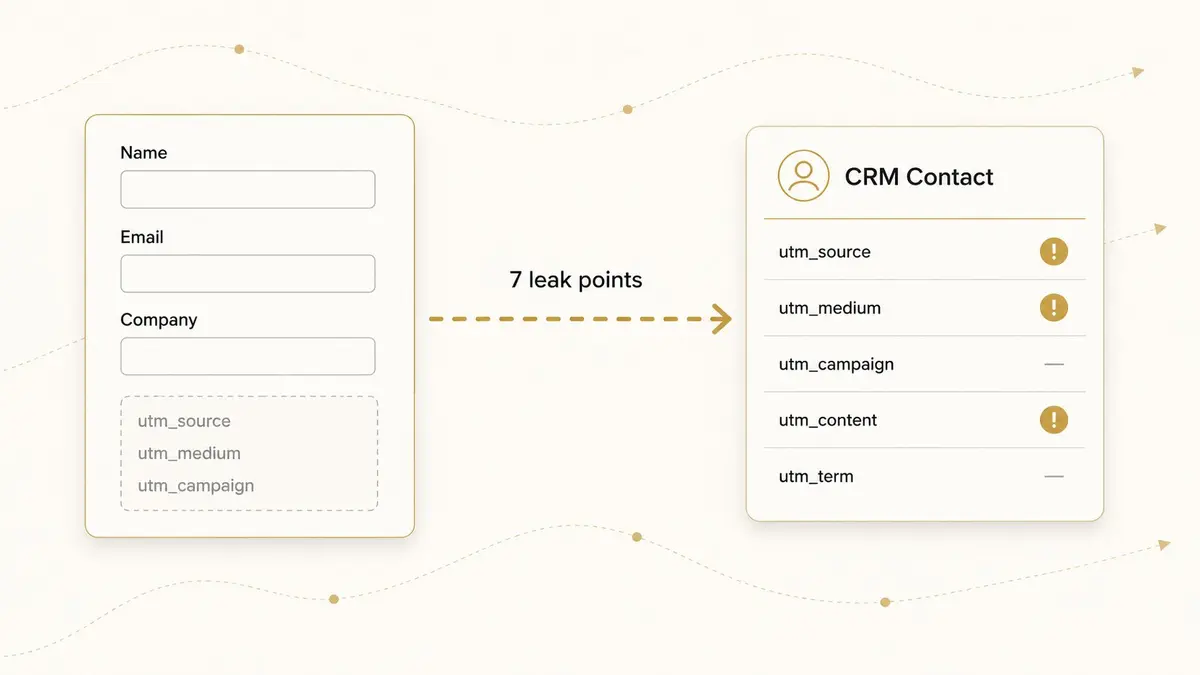
A common B2B SaaS pattern in 2026: HubSpot hidden fields are missing UTM data even though the campaign URL had them. The team typed UTM parameters carefully into LinkedIn Ads, into the email tool, into the press release. Sales opens the new contact record. Original Source: Direct Traffic. Lead Source: empty. The campaign data did not make it from the URL into the CRM.
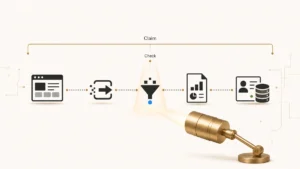
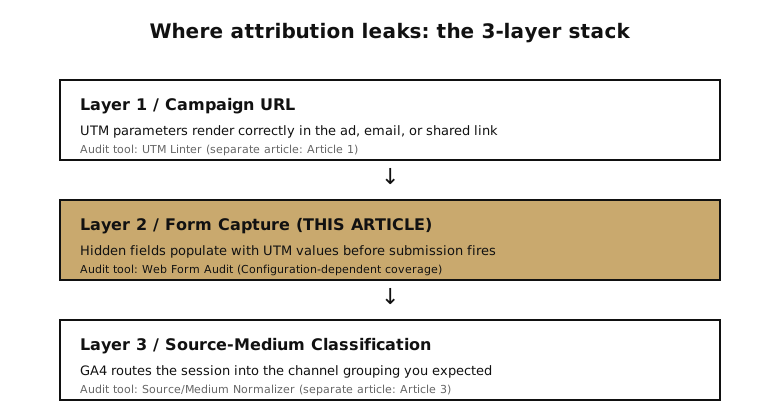
This is not a UTM problem. It is a form-capture problem. Three layers sit between a campaign click and a CRM record: (1) the campaign URL itself, (2) the landing-page form’s hidden fields, and (3) GA4’s source/medium classification. The leak almost always lives in one of those three, and operators waste hours rebuilding the campaign URL when the URL was already correct. There is a fourth case worth separating out, where no layer ever held the value because the visit carried no parameter at all, and that is the one source answer a hidden input can never populate.
This article covers Layer 2: form-side capture. We name 7 places HubSpot hidden fields can fail to populate UTM data before submission fires, then give you a 3-step Browser-to-CRM proof you can run on any landing page in under 10 minutes. The article serves operators inside a 2025 reality where 70% of RevOps teams report they cannot make strategic decisions because of poor data quality (Openprise, 2025 State of RevOps Data Quality, ~150 respondents).
To prevent this failure upstream, QA UTM links before launch so the URL, form, and CRM fields all carry the same source data.
Key Takeaways
- “HubSpot hidden fields missing UTM data” is a form-capture problem, not a campaign-URL problem. The URL is usually fine.
- There are 7 distinct places this Likely breaks: embed context, JS execution order, consent banners, SPA routing, field name mismatch, GTM-loaded embeds, and HubSpot’s Non-HubSpot Forms tool.
- HubSpot’s native UTM capture works only when the visitor submits on the same page they landed on, with UTMs still present in the URL. Browsing to a Contact Us page first loses them.
- A 3-step Browser-to-CRM proof (page render, test submit, contact property check) localizes the leak in under 10 minutes.
- Web Form Audit covers a Configuration-dependent surface; the coverage callout below names where the tool returns Could not verify pending the embed-loader-aware retry extension.
VOCABULARY
This article uses diagnostic vocabulary. Likely means observed behavior indicates a probable capture gap; investigate further. Could not verify means blocked by consent state, script-blocker, or other Configuration-dependent factor. Review-Ready means hidden fields rendered as expected pre-submit; downstream attribution still depends on cookie state and property setup. Configuration-dependent means the answer depends on your specific HubSpot, form, redirect, or consent-mode configuration.
How HubSpot hidden fields are supposed to work
HubSpot hidden fields are form fields that render in the page DOM but are not visible to the visitor. Their job is to carry contextual values (UTM parameters, referrer URL, internal page context, lead-source flags) from the page into the contact record at the exact moment the form submission fires, in four steps:
- The hidden field renders when the HubSpot form embeds on the landing page.
- Page-level JavaScript reads the URL query string (for example,
?utm_source=linkedin&utm_medium=cpc&utm_campaign=q2-demo) and writes the values into the matching hidden-field inputs. - The visitor submits the form. The submission posts every field, visible and hidden, to HubSpot.
- The contact record receives property values, mapped from each hidden field’s internal name to the corresponding HubSpot custom property.
This sequence is HubSpot’s documented behavior for query-string-based auto-population (HubSpot Knowledge Base, updated September 17, 2025). When any of the four steps fails in your environment, contacts arrive with empty UTM fields and the rest of this article applies.
The 7 places this Likely breaks (and why)
The four-step happy path fails in seven distinct ways. Each carries its own evidence pattern, so naming the mode matters before reaching for a fix. The cost compounds downstream too: a contact that arrives with no campaign attached still joins the account timeline, which is why attaching every touch to the right parent company depends on this layer working first.
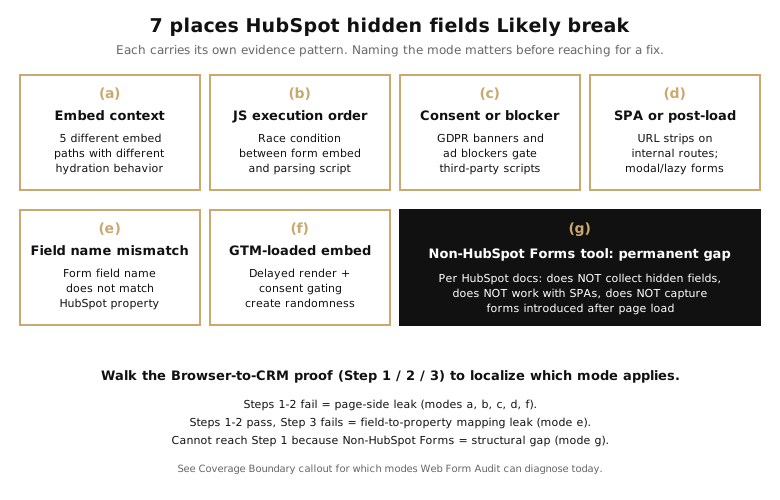
(a) Embed context: the form can live in 5 different places
HubSpot forms render through five distinct embed paths: a native HubSpot CMS page, an external embed code on a non-HubSpot site, a raw HTML embed (legacy editor only), HubSpot’s Non-HubSpot Forms capture tool, or the Forms API. Each path has different parent-page-URL access and different hidden-field hydration behavior. All five also assume a contact record gets created to carry the value, and that assumption is worth testing on its own, because no contact record at all is a different failure with a different procedure than an empty field on a record that exists.
A form that works on a native HubSpot page can fail on the same form rebuilt in Webflow or WordPress because the iframe boundary blocks the parent page’s script from pushing values into embedded fields. HubSpot’s external-embed troubleshooting guide covers this asymmetry explicitly (HubSpot, externally embedded forms). The iframe boundary is not unique to HubSpot — most CRMs that offer external form embeds work through similar mechanisms, and the broader HubSpot vs. Salesforce comparison covers how form-side data capture differs across CRM platforms when an embed crosses domains. Web Form Audit handles the HubSpot CMS native path cleanly; see the Coverage Boundary callout below the diagnostic snippet for the catalogued surface across all five paths.
(b) Page-level JavaScript execution order
The hidden-field hydration script reads the URL and pushes values into the form. If the form embed renders before the script runs, the form’s submit handler fires with empty fields. If the script runs but the form embed has not rendered yet, the script writes into nothing. Page-load race conditions are common when both the HubSpot form embed and a custom UTM-parsing script live in the same <head> block, or when one is in <head> and the other in a deferred <script defer> tag. Symptom: intermittent UTM data, present some sessions, missing others, with no obvious pattern. Fixing the hydration only fixes the field, though, and the record can still arrive in Salesforce attached to nothing if the campaign membership behind it was never written. That intermittency is worse than a clean break for reporting purposes, because intermittent capture bends the average in one direction while leaving the volume high enough that nothing looks wrong.
(c) Consent banner or script blocker
GDPR and CCPA cookie banners that block third-party scripts until acceptance will block HubSpot’s UTM-parsing path. Submissions that fire before banner acceptance arrive with empty hidden fields. Browser ad blockers behave the same way: HubSpot’s own tracking-code troubleshooting notes that ad blockers can suppress the script entirely (HubSpot, tracking code troubleshooting). When script-blocking is the leak, the data cannot be verified from your side. You are looking at user-agent-side gating, not a HubSpot bug.
(d) SPA routing or form introduced after page load
Single-page apps built on Next.js, React, or Vue route between views without a full page reload. UTMs from the initial landing URL disappear from window.location once the visitor clicks through to another internal route. Forms injected into the DOM after the initial render (modal triggers, scroll-to-form, lazy-loaded sections) have a separate hydration window that the standard UTM-parsing script may not catch. HubSpot’s Non-HubSpot Forms documentation explicitly notes that SPAs are not supported: “When a form is on a single-page app, the HTML isn’t loaded when navigating to another page” (HubSpot Knowledge Base).
(e) Hidden field name mismatch
The form has a hidden field named utm_source, but the HubSpot property is named utm__source (typo, double underscore), or original_source, or lead_source_utm. The submission fires correctly, but the value posts to a property that does not map back to the expected field. The contact record shows the wrong property populated, or nothing populated. HubSpot’s documentation on hidden fields requires the internal name to match exactly, lowercase, with no leading or trailing spaces. A mismatch here stays invisible downstream, because attribution normalises to 100% across whatever it received and produces a confident split that never mentions what went missing.
This is the simplest mode to verify and the most common silent failure when a property has been renamed since the form was first built. The downstream cost compounds: every scoring rule that reads source or medium cannot verify whether the contact came from paid, organic, or referral, and the contact’s MQL/SQL fate depends on a tiebreaker that did not have to be a tiebreaker. The same missing-data pattern also feeds GA4’s (not provided) keyword pool on the analytics side, where a campaign session arriving without utm_term is unrecoverable for keyword-level reporting even when the form capture eventually succeeds.
(f) Form embed loaded via Google Tag Manager
GTM-managed form embeds combine two risks. First, GTM delays form rendering until the GTM container fires, which can place form-render after the UTM-parsing script ran, recreating failure mode (b) at scale. Second, GTM itself is consent-dependent on most B2B sites; if a visitor blocks the GTM tag in consent settings, the form embed never fires at all, or it fires without its companion hidden-field hydration script. This presents as the most random failure pattern: UTMs land for some sessions and fail for others, with no clean reproduction. GTM-loaded embeds and cache-plugin-deferred forms are also the Web Form Audit coverage boundary documented in the callout below; the first audit may return Could not verify if the form has not rendered when the tool’s wait window closes. Intermittent findings like this are the hardest to classify honestly at launch, because a rendered field is a configuration rather than an observation, and one clean session is not evidence that the others worked.
(g) Non-HubSpot Forms tool: a permanent capture gap
HubSpot’s Non-HubSpot Forms tool captures submissions from forms that were not built in HubSpot (Webflow forms, custom HTML forms, third-party form builders). The tool is convenient but has three documented limitations operators often miss: “The form must not contain hidden fields, as the tool does not collect information from any hidden fields”; the tool does not work with single-page apps; and it does not capture forms introduced after page load (HubSpot Knowledge Base). Teams that adopted this tool thinking it was equivalent to native HubSpot Forms have a permanent capture gap they may not know about. Web Form Audit cannot diagnose this path because the form is collected server-side by HubSpot rather than rendered in the DOM at submission time; the structural answer is migration to native HubSpot Forms, not a configuration adjustment.
The Browser-to-CRM proof: 3 evidence steps
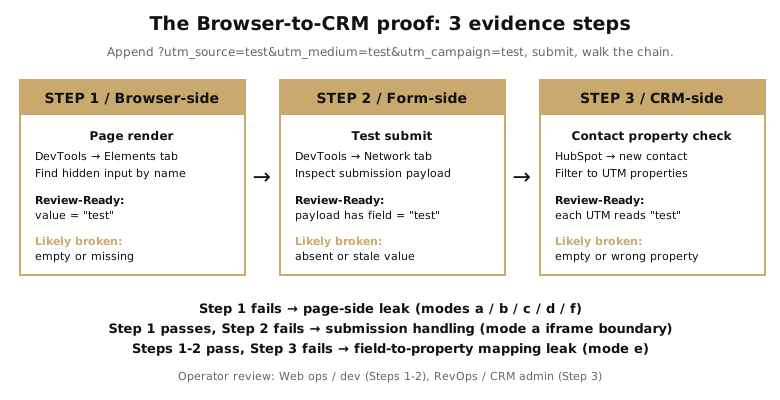
To localize which of the 7 modes is your leak, run a single test submission with a known UTM string, then check three places. Append ?utm_source=test&utm_medium=test&utm_campaign=test to your form page’s URL, complete and submit the form normally, then walk this table:
| Step | Expected evidence (Review-Ready) | What “Likely broken” looks like | Who reviews |
|---|---|---|---|
| 1. Page render (browser-side). Open browser DevTools, Elements tab. Search the rendered HTML for your hidden field’s name attribute. | The hidden <input> element’s value attribute reads "test". | The hidden field is empty, missing, or shows a default value other than "test". | Web ops or dev |
| 2. Test submit (form-side). Open DevTools, Network tab. Submit the form and inspect the form-submission POST payload. | The payload includes the field name with value "test". | Field is absent from the payload, value is empty, or it carries a stale prior-session value. | Web ops or dev |
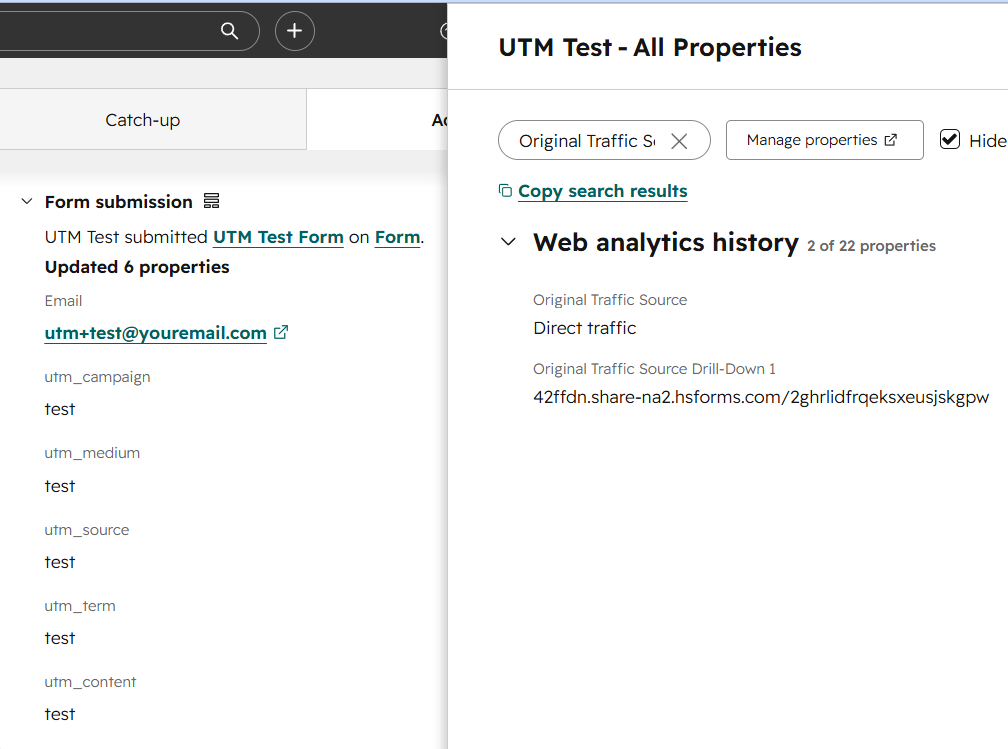
| 3. Contact property check (CRM-side). In HubSpot, open the newly created contact record. Filter to the UTM custom properties. | Each UTM property reads test. | UTM properties are empty, the wrong property received the value, or Original Source is populated but UTM properties are not. | RevOps or CRM admin |
Workflow · 10 min
How to diagnose missing HubSpot UTM data: the Browser-to-CRM proof
A three-step diagnostic walking the data chain from browser render through form submission to the contact record.
Page render check (browser-side)
Append
?utm_source=test&utm_medium=test&utm_campaign=testto the form page URL. Open DevTools Elements tab, search the rendered HTML for your hidden field name. Expected: value attribute reads “test”. Owner: Web ops or dev.Test submit check (form-side)
Open DevTools Network tab, submit the form normally, inspect the POST payload. Expected: the payload includes the field name with value “test”. Owner: Web ops or dev.
Contact property check (CRM-side)
In HubSpot, open the newly created contact record, filter to UTM custom properties. Expected: each UTM property reads “test”. Owner: RevOps or CRM admin.
If Step 1 fails, the leak is in your page (modes a, b, c, d, or f). If Step 1 passes and Step 2 fails, the leak is in submission handling (mode a iframe boundary, or a custom validation hook stripping the value). If Steps 1 and 2 both pass but Step 3 fails, the leak is in field-to-property mapping (mode e). If you cannot get to Step 1 because the form is captured via Non-HubSpot Forms, mode g applies and the structural answer is migration to native HubSpot Forms. Localising a field leak this way is one narrow instance of a broader method: when a value is captured but never reaches the owner, you trace the same submission through the rest of the routing chain to find which later handoff dropped it.
The 3-step proof works because it walks the chain in the same order the data does. Most ops teams skip Step 1 entirely and start at Step 3 (CRM side), which is the most expensive place to debug from — the visibility is worst there, and most leak modes have already obscured themselves by the time the contact record exists. Front-loading the browser-side check turns a half-day RevOps investigation into a 10-minute pass that lands in the right H2 of this article, and the MQL-to-SQL handoff inherits whatever source/medium signal the contact record received. So does the attribution software that reads those records later: it can only model the touches the form actually captured, which is why closing this leak pays off twice.
PRO TIP
For SPA landing pages (mode d), append the test query string to the URL of the exact page that hosts the form, not the SPA’s root URL. SPAs frequently strip query strings during internal navigation, and the test only proves anything if the URL is what the form’s parsing script actually sees at form-render time. A test only proves the paths it covers, which is why routing changes get sized as one record per rule, overlap and fallback path before launch. That standard is what separates a check somebody configured from a check somebody proved, and recording which of the two you actually have is the step a pre-launch review almost always skips.
Where attribution usually leaks
Three layers sit between a campaign click and a CRM record: (1) campaign URL — UTM parameters render correctly in the launched ad, email, or link; (2) form capture — landing-page forms render expected hidden-field coverage when the submission fires; (3) source/medium classification — GA4 routes the session into the channel grouping you expected. This article covers Layer 2. For Layer 1 and Layer 3 context, the broader Google Analytics traffic guide walks through how UTM parameters become GA4 source/medium pairs and how channel grouping is policy rather than deterministic.
COVERAGE BOUNDARY
Web Form Audit’s coverage is Configuration-dependent. The tool extracts cleanly from HubSpot v2 forms (hsForm_* selector + forms.hsforms.com action), Marketo embeds (mktoForm_* selector + utm_*__c tracking fields), and Microsoft Dynamics 365 Marketing Tier-A forms — 21 canonical fields catalogued in total. For HubSpot forms loaded via WP-Rocket cache plugins on cold CDN replicas, GTM-embedded forms with consent-dependent loading, or SPA-injected forms introduced after the initial render, WFA may return Could not verify on first audit while the embed-loader-aware retry extension sits in scope-queue. Pardot, Salesforce Web-to-Lead, WordPress form plugins, and Typeform / Jotform / Formstack / Webflow / Unbounce sit outside the v1 catalog.
Localize your Layer-2 leak in under 10 minutes
The 7 failure modes and the Browser-to-CRM proof give you a structured way to look at any HubSpot form. IVRIS’s Web Form Audit tool runs an automated version of the same diagnostic against a landing page URL you provide. Within its catalogued surface, it checks the rendered HTML for expected hidden fields, flags missing UTM coverage, and labels each finding Review-Ready, Likely broken, or Could not verify, applying the same diagnostic vocabulary this article uses to your specific page.
Check whether your landing-page forms render expected hidden-field coverage → Web Form Audit
Form-capture is one of three layers where attribution Likely leaks. The same diagnostic vocabulary applies to the inbound funnel itself: when this leak is real, the inbound funnel cannot tell you which channel produced which qualified lead, and the MQL-to-SQL handoff inherits a source/medium gap that did not have to exist. The damage starts earlier than attribution, too: the conversion rate you are benchmarking against inherits the same fault, because records that fail to capture cleanly are dropped from channel reporting while still counting as submissions upstream.
Frequently Asked Questions
HubSpot hidden fields render in the DOM but rely on page-level JavaScript to populate values from the URL query string before submission. Empty fields indicate one of seven failure modes: embed-context mismatch, JS execution-order race, consent banner or ad blocker, SPA routing, field name mismatch, GTM-loaded embed delay, or use of the Non-HubSpot Forms tool, which does not collect hidden fields.
HubSpot hidden fields do not auto-populate UTM data by default. You create custom HubSpot properties for each UTM parameter, add hidden fields with matching internal names to the form, and HubSpot populates them from the URL query string when the visitor lands on, and submits from, the same page (per HubSpot’s documented behavior for query-string auto-population).
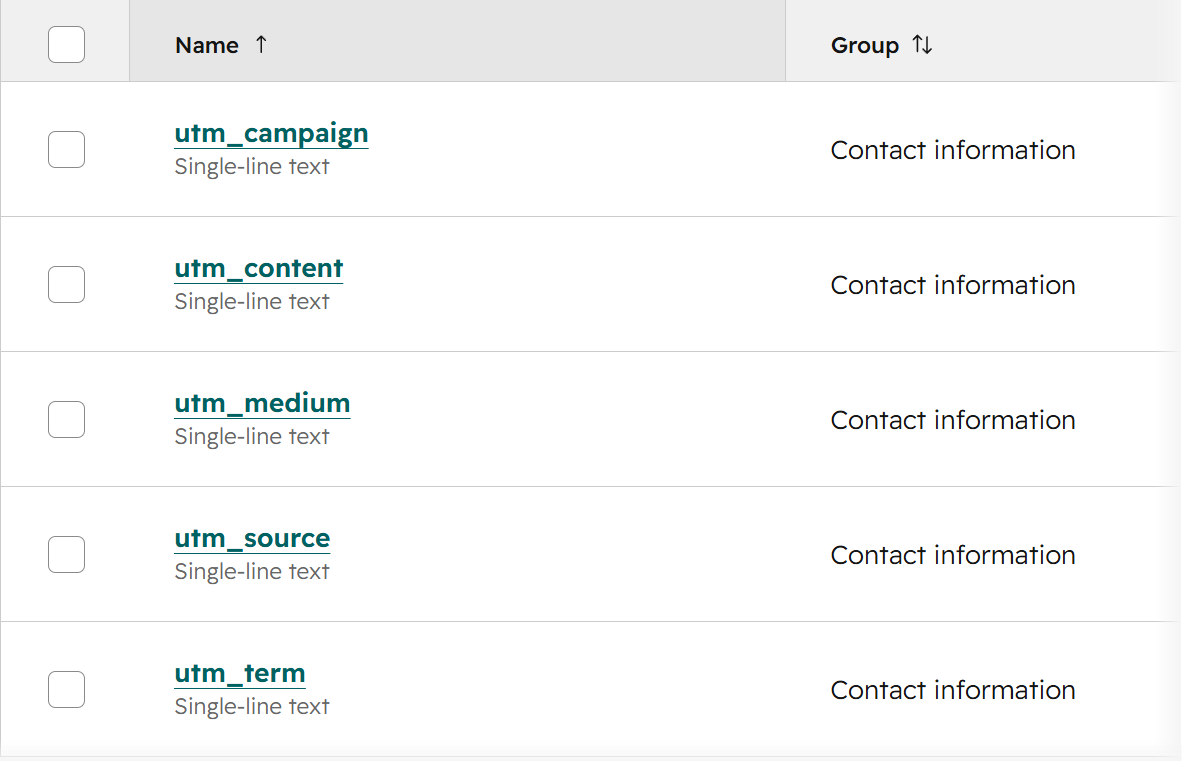
Create five custom contact properties (utm_source, utm_medium, utm_campaign, utm_content, utm_term) as single-line text fields with matching lowercase internal names. Add each as a hidden field in the form. Test submission with a tagged URL such as ?utm_source=test. Verify the contact record receives the values. If not, walk the 7 failure modes in this article.
HubSpot’s Original Traffic Source is a system-managed property HubSpot populates from cookie-based session tracking, not from form-side hidden fields. Custom UTM properties are operator-managed and populate from form submission. The two disagree when the cookie-stored source rule fires differently from the URL-based UTM at submission time. This is expected behavior, not a bug.
UTM parameters live in the URL query string. Redirects can strip query strings if not configured to preserve them. SPAs do not reload the URL on internal navigation, so the parsing script reads an empty query at form-render time. Consent banners block third-party scripts (including UTM-parsing scripts) until the visitor accepts. Each is a Configuration-dependent gap with its own check in the 3-step proof table above.