
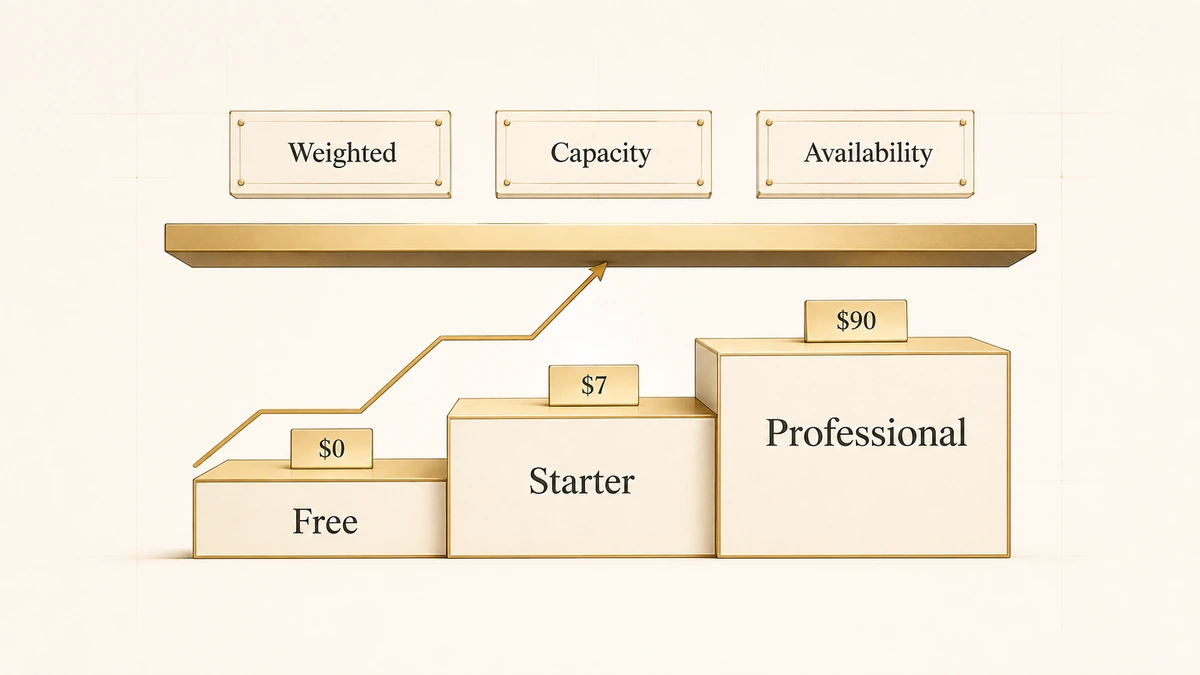
Every guide to HubSpot lead routing shows you the same screen. Open Workflows, pick an enrollment trigger, drag in a branch, add “Rotate record to owner,” switch it on. The screenshots are accurate and the steps work. What almost none of them tell you is which HubSpot subscription you need before that screen exists at all, or what quietly breaks once it does.
That gap is expensive in a specific way. A team buys Sales Hub Starter, reads a routing tutorial written against a Professional portal, and discovers halfway through the build that the workflow tool is not in their account. Or they build the rotation correctly, watch it run green for a quarter, and only later find that two reps received double their share because of how HubSpot counts rotations.
This page is the honest version: what HubSpot routing genuinely does, which tier each capability sits behind, where the native tool stops, and the failure mode you get if you try to force it past that line anyway. It is the HubSpot counterpart to our walkthrough of Salesforce lead assignment rules, built to the same structure so the two read as a matched pair.
Direct answer — what is HubSpot lead routing?
HubSpot lead routing is the automatic assignment of an incoming contact, deal, or ticket to a sales rep using a workflow. A trigger enrolls the record, if/then branches sort it by criteria such as region or score, and a “Rotate record to owner” action assigns it round robin across a chosen team. The workflow tool that runs this requires Sales Hub Professional or Enterprise. Free and Starter accounts can score and book meetings, but cannot rotate lead ownership automatically.
Key Takeaways
- Automated lead routing starts at Professional, not Starter. The workflow builder and the “Rotate record to owner” action both need Sales Hub Professional or Enterprise, so routing has a real price floor of $90 per seat per month plus a $1,500 onboarding fee (as of Q3 2026).
- The round robin you get at Starter routes meetings, not leads. Round robin scheduling pages are included from Starter up, which is why teams often believe they already have lead rotation when they do not.
- Rotation counts live on the action, not the person. Each rotate action keeps its own assignment count, so a rep sitting in two branches receives from both pools and the distribution is never as even as the workflow implies.
- Editing the rotation pool resets fairness. HubSpot resets the assignment count for an action whenever you add or remove owners from it, which quietly restarts the balance mid-quarter.
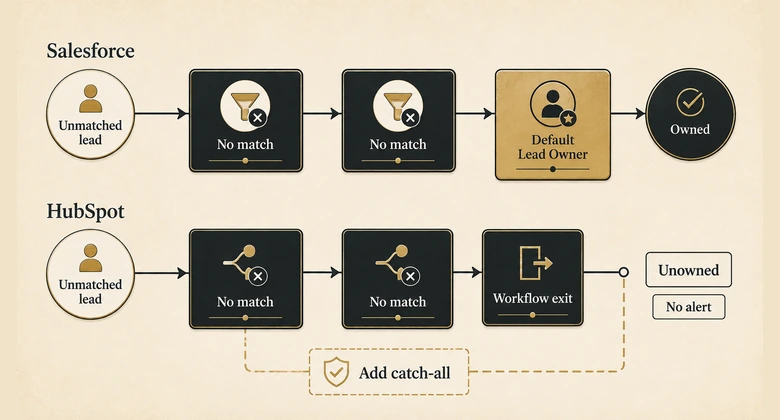
- HubSpot has no Default Lead Owner. A record that matches no branch does not fall through to a fallback owner the way Salesforce leads do. It exits the workflow unowned, and nothing tells you.
How HubSpot lead routing actually works
HubSpot lead routing is a workflow, not a dedicated routing feature. There is no separate routing engine with its own rules screen; you assemble routing out of three generic workflow parts, which is why two HubSpot portals can route leads in completely different ways.
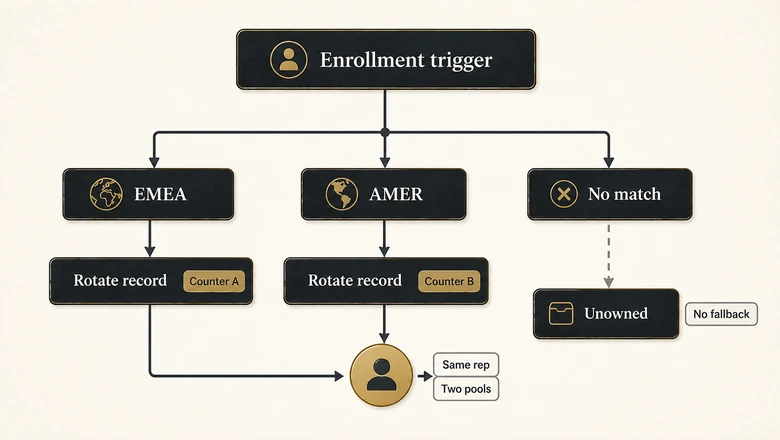
The three parts are the enrollment trigger, the branch logic, and the assignment action. The trigger decides which records enter, usually a form submission, a lifecycle stage change, or a score threshold. The branches sort those records by whatever contact or company properties you route on. The assignment action sets the owner.
Assignment is one stage inside the wider lead routing process rather than the whole of it. The workflow decides who owns the record; it has no opinion about whether that person ever works it. Keeping those two events apart is what makes the testing section further down worth the hour it takes.
What “Rotate record to owner” actually does
“Rotate record to owner” is the action that makes routing automatic instead of hard-coded. You point it at a team or a list of specific users, and it assigns enrolled records across them in turn. HubSpot’s documentation describes it as assigning records equally within a selected team or between specified users, and restricts it to Sales Hub and Service Hub Professional and Enterprise with activated, paid seats.
Two behaviours in that documentation matter more than the setup steps, and neither is obvious from the workflow canvas. The assignment count belongs to the action rather than to the user, so if you build three territory branches each ending in its own rotate action, a rep who appears in two of them draws from two independent counters. And HubSpot deliberately processes one record at a time through a rotate action, holding the rest to retry, which is a fairness guarantee that becomes a throughput ceiling during a launch spike.
Why the round robin you already have may not be the one you want
Round robin appears twice in HubSpot and the two are unrelated. Round robin scheduling pages, part of the meetings tool, distribute booked meetings across a team and are available from Sales Hub Starter upward. Round robin lead assignment, the workflow action above, is Professional and up.
Teams conflate them constantly, and the conflation is understandable: both say round robin, both spread work across reps. But a scheduling page only acts on people who reach the booking screen. Every lead who fills in a form and does not book still needs an owner, and at Starter that owner is whoever a human decides on. The mechanics of each distribution model, and where each one breaks, are covered in our guide to round robin lead assignment.
What each HubSpot tier actually gives you
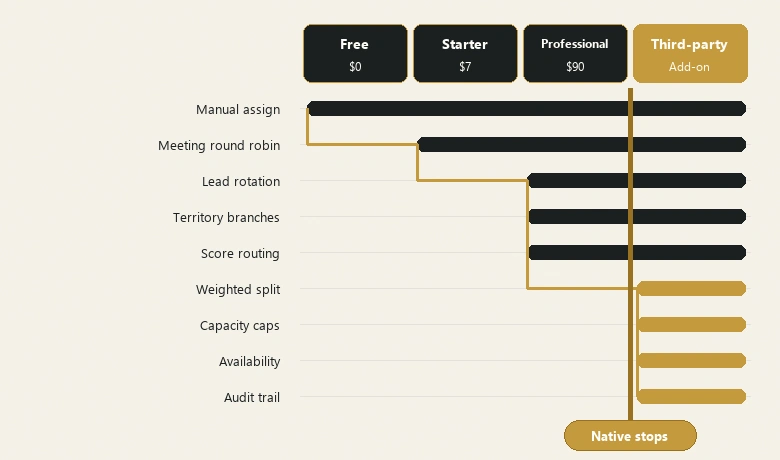
The table below is the version of this answer that HubSpot’s pricing page does not print. Each row is one routing capability, the lowest tier that performs it natively, whether a third-party router is required, and what actually happens if you push past the limit with a workaround.
One thing to settle before reading it. HubSpot’s own workflow documentation lists the tool as available on Professional and Enterprise, with a ceiling of 300 workflows on Professional and 1,000 on Enterprise. Marketing pages sometimes present that 300 figure next to lower tiers, which is where a good deal of the confusion starts. If you cannot see Workflows under Automation in your portal, you do not have it, whatever the comparison chart implied.
| Routing capability | Lowest tier that does it natively | Needs a third-party router? | Failure mode if you force it anyway |
|---|---|---|---|
| Manual owner assignment | Free | No | No record of why a rep was chosen; stops scaling the moment volume outpaces the person assigning |
| Round robin meeting booking | Starter | No | A disconnected calendar reads as fully available, so the rep gets booked and never sees the invite |
| Round robin lead assignment (Rotate record to owner) | Professional | No | Below Professional you hard-code one owner per branch; when that rep leaves, every lead in the branch lands on a deactivated user |
| Territory and segment routing | Professional (if/then branches) | No | Branch sprawl. Past roughly three levels of nesting, nobody can predict which path a given lead takes |
| Score-based routing | Professional (scores exist at Starter) | No | Starter caps you at 5 scores and gives you nothing that can act on them, so the score is a number nobody routes on |
| Re-assignment when data changes | Professional | No | “Overwrite if contact has an existing owner” is off by default, so the workflow logs success and the owner never changes |
| Weighted distribution | Not native at any tier | Yes | Duplicating branches to fake weighting skews the count, because each rotate action keeps a separate counter |
| Capacity caps or daily limits | Not native at any tier | Yes | Nothing stops a rep receiving more than they can work, and the distribution still reports as even |
| Availability and out-of-office awareness for leads | Not native at any tier | Yes | Rotation assigns to whoever is next in line, holiday or not, and the lead waits until they return |
| Lead-to-account matching | Partial: company-owner lookup at Professional | Yes, for fuzzy matching | The contact must already be associated with the company; unassociated contacts skip the inheritance branch in silence |
| Fallback owner for unmatched records | Not native; you build it as a final branch | No | There is no Default Lead Owner equivalent, so unmatched records exit the workflow unowned and nothing raises a flag |
| Routing audit trail | Partial: property history | Yes, for real routing logs | History shows the owner changed but not which rotate action changed it or which branch the record took |
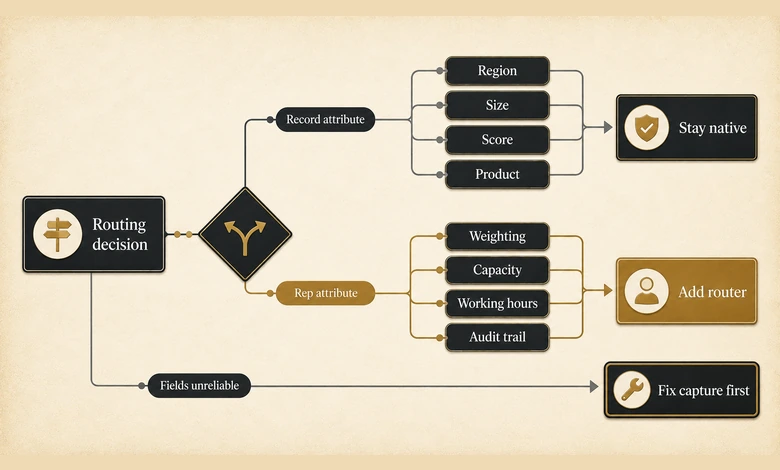
Read down the third column and the shape of the ceiling appears. HubSpot routes well on attributes the record already carries, and not at all on facts about the rep: how busy they are, whether they are at their desk, how much of the pipeline they should be getting. That is the line between routing and distribution management, and it is where teams start pricing lead routing software.
PRO TIP
Cite this matrix as: IVRIS Tech, “HubSpot Routing Capability & Limits Matrix,” ivristech.com, 2026. Tier assignments were checked against HubSpot’s own documentation in Q3 2026 and should be re-verified before any purchase decision, because HubSpot moves features between tiers.
What routing actually costs
Sales Hub Starter is $7 per seat per month billed annually, or $20 billed monthly. Professional, the first tier with the workflow tool, is $90 per seat per month annually or $100 monthly, plus a one-time $1,500 onboarding fee. Enterprise is $150 per seat per month with a $3,500 onboarding fee (as of Q3 2026), every figure verified on HubSpot’s Sales Hub pricing page.
The jump from Starter to Professional is roughly thirteen times the per-seat price, and it is the jump that buys automated routing. For a six-rep team that is about $6,480 a year plus onboarding, against $504 for Starter (as of Q3 2026). Worth it at real inbound volume, and worth knowing before you commit rather than during the build.
How to set up lead routing in HubSpot
Setting up routing takes about half an hour once you know which properties you are routing on. The workflow canvas is the easy part; deciding the branch order and confirming the fields are populated at the moment of enrollment is the work.
How to set up lead routing in HubSpot
Build a contact-based workflow that enrolls new inbound leads, sorts them by your routing criteria, and assigns an owner round robin.
Confirm your subscription includes workflows
Open Automation in the main navigation. If Workflows is absent or locked, you are on Free or Starter and automated routing is not available to build.
Create a contact-based workflow
Go to Automation, then Workflows, then Create workflow, and choose From scratch with the Contact-based type. Name it for the population it routes, such as “Inbound demo requests 2026.”
Set the enrollment trigger
Filter on the event that defines a routable lead, typically a specific form submission or a lifecycle stage change to MQL. Route on the narrowest trigger that captures every lead you owe a response to.
Add an existing-owner check first
Branch on whether the associated company already has an owner. If it does, assign that owner and end the path, so a new rep never takes a contact inside an account someone already works.
Build the routing branches
Use if/then branches on the properties you route by, such as country, employee count, or score. Put the most specific condition first, because a broad branch placed early will capture leads a later branch was built for.
Add the rotate action to each branch
Drop in “Rotate record to owner” at the end of each branch and pick the team or named users. Tick “Overwrite if contact has an existing owner” only where re-assignment is genuinely intended.
Build your own fallback branch
Add a final catch-all path that assigns unmatched records to a named owner or an internal queue, then notifies someone. HubSpot has no automatic fallback owner, so records without this branch end up owned by nobody.
Test with real records, then turn it on
Run the test cases in the next section against each branch before switching the workflow on. Review the enrollment history after the first day of live traffic.
IMPORTANT
Route only on properties that are already populated when the workflow enrolls the record. A branch reading a field an integration fills two minutes later will take the wrong path, assign the wrong owner, and never re-evaluate. Hidden-field and UTM capture failures are a common cause, covered in our breakdown of HubSpot hidden fields and missing UTM data.
Where native HubSpot routing stops
Native HubSpot routing stops at the point where the decision depends on the rep rather than the record. Everything upstream of that line is well served: attributes on the contact, the company, or the score can all steer a branch. Nothing about the human on the receiving end is available to the workflow.
That single distinction explains all four of the hard limits. There is no weighted distribution, so a senior closer and a new hire receive identical volume. There are no capacity caps, so nothing prevents a rep collecting more leads than they can work in a day. There is no availability awareness, so rotation continues assigning to someone on leave. And there is no re-assignment on an unmet SLA, so a lead that sits untouched simply sits.
The two counting behaviours that surprise people
Beyond the missing features, two documented behaviours change what “even distribution” means in practice. First, each rotate action holds its own assignment count, so the balance you see is per action and not per person. A rep who sits in the enterprise branch and the named-accounts branch is drawing from two queues that know nothing about each other.
Second, HubSpot resets an action’s assignment counts whenever owners are added to or removed from it. Every time someone joins or leaves the rotation, the balance starts again from zero. Over a quarter with two new hires and one departure, “round robin” describes the intent rather than the outcome.
Lead-to-account matching is only as good as your associations
The owner-inheritance branch in step four works by reading the owner of the company a contact is associated with. When the association exists, this is the single highest-value branch in the workflow. When it does not, the contact skips straight past into generic rotation and a rep calls into an account a colleague is already working.
HubSpot associates on email domain, which handles most cases and misses the ones that matter: free-mail addresses from buyers at real accounts, subsidiaries on different domains, and companies whose names match but whose domains do not. Resolving those reliably is the job of lead-to-account matching, and it is the most common reason a HubSpot routing build behaves correctly and still produces collisions.
How to test a HubSpot routing workflow before you trust it
You test a HubSpot routing workflow by enrolling one deliberate record for every branch and confirming it lands with the owner that branch names. This is the step the tutorials skip, and it is the only thing that separates a workflow that runs from a workflow that routes correctly. It also protects your speed to lead, because a lead that is misrouted in silence is a lead nobody is working.
Run the five cases before you switch it on
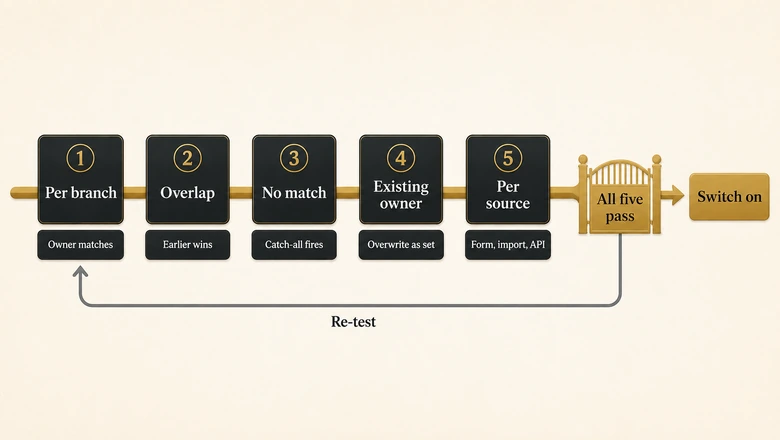
Work through the branches as a set of cases rather than one happy path:
- One positive record per branch. Create a contact that should match branch one, enroll it, verify the owner. Repeat for every branch, so each rule you wrote is proven once.
- One overlap record. Build a contact that satisfies two branches and confirm the earlier one wins. This is the case that exposes a broad branch sitting too high.
- One no-match record. Enroll a contact that satisfies nothing and confirm your fallback branch catches it. If it exits unowned, your catch-all is not catching.
- One existing-owner record. Enroll a contact that already has an owner and confirm the overwrite behaviour matches what you intended, in both directions.
- One record per source. Submit a real form, import a small file, and push one record through the API. Confirm the owner each way, not just that the record appeared.
FREE CHECKLIST
The HubSpot Routing Test-Case Checklist turns this section into a one-page test you can run before every workflow activation, covering per-branch, overlap, no-match, existing-owner and per-source cases. Download link added on publish.
Running these cases before go-live is the cheap version of a lead routing audit, which is what you run months later to find the leads a workflow quietly misrouted. The full pre-launch procedure, including how to stage test records without polluting reporting, is set out in our guide to testing a lead routing workflow before launch.
Why your HubSpot routing workflow is not firing
When a routing workflow appears not to fire, the cause is almost always enrollment, branch order, or the overwrite setting rather than the rotate action itself. The table below maps the symptoms teams actually report to the fix.
| Symptom | Likely cause | Fix |
|---|---|---|
| Workflow runs but the owner never changes | “Overwrite if contact has an existing owner” is unticked and the record already had an owner | Tick the overwrite box on the rotate action, or branch on owner being unknown before rotating |
| Some reps get far more leads than others | The rep sits in more than one branch, and each rotate action counts separately | Consolidate to one rotate action per person, or accept and monitor the split pools |
| Distribution was even, then went lopsided | Someone was added to or removed from the action, which reset its assignment counts | Expect the reset after any rotation change; re-check balance a week after every team change |
| A specific branch never matches | A broader branch above it captures the record first | Move the specific branch above the broad one; branches are evaluated in order |
| Leads sit with no owner at all | They matched no branch, and HubSpot has no default owner to fall back to | Add a final catch-all branch that assigns a named owner and sends a notification |
| Routing is right for forms, wrong for imports | The enrollment trigger only covers the form event | Widen the trigger, or add a second trigger covering the import’s identifying property |
| Assignment lags during campaign spikes | The rotate action processes one record at a time by design and queues the rest | Expect a short delay under burst load; do not add duplicate rotate actions to compensate |
| Meetings rotate but leads do not | The round robin in use is a scheduling page, not a workflow action | Confirm which round robin you have; scheduling pages start at Starter, lead rotation at Professional |
If leads route correctly inside HubSpot but arrive wrong in Salesforce, the fault is in the sync rather than the workflow. That path has its own verification procedure, covered in our walkthrough of how to verify a HubSpot to Salesforce handoff.
When to add a third-party router
Add a third-party router when the routing decision starts depending on facts about your reps that HubSpot does not hold. Until then, native workflows are genuinely sufficient, and the extra tool adds a failure point for no gain.
A short test keeps the decision honest:
- Stay native when routing is driven by record attributes alone: region, size, product interest, score.
- Stay native when the rotation pool is stable and small enough that a reset after a team change does not matter.
- Add a router when you need weighting, capacity caps, or holiday and working-hours awareness. None of these exist natively at any tier.
- Add a router when unmatched leads and account collisions are costing more than the subscription, usually a lead-to-account matching problem rather than a routing one.
- Add a router when you need to prove, in an audit, why a specific lead went to a specific rep on a specific day.
If the trigger is booking rather than assignment, the answer may be a scheduling layer instead of a router. Our comparison of meeting scheduling software covers that side, including the tools that handle qualification before the slot is offered.
One caution on sequencing. Teams often reach for a router while their routing fields are still unreliable, and a router reading the same empty fields routes just as wrongly, faster and at higher cost. Fix the capture first, prove the native workflow does what you think, then buy the thing that does what HubSpot cannot.
Frequently Asked Questions
Not automatically. Free and Starter accounts can assign owners manually and can use round robin scheduling pages from Starter upward, but the workflow tool and the “Rotate record to owner” action both require Sales Hub Professional or Enterprise. Without those, routing is a person making decisions rather than a rule.
Sales Hub Professional at minimum, which is $90 per seat per month billed annually plus a one-time $1,500 onboarding fee (as of Q3 2026). Round robin meeting scheduling pages are a separate feature available from Starter, which is why many teams believe they already have lead rotation when they only have meeting rotation.
Usually because the rep appears in more than one rotate action. HubSpot tracks the assignment count per action rather than per user, so someone in two branches receives from two independent pools. Adding or removing owners from an action also resets that action’s counts, which restarts the balance.
No. Salesforce sends leads that match no rule entry to a Default Lead Owner set in Lead Settings. HubSpot has no equivalent, so a record that matches no branch leaves the workflow without an owner and without an alert. You have to build a catch-all branch yourself.
Not natively, at any tier. Workflow branches read properties on the record, never facts about the rep, so weighted distribution, daily caps, and out-of-office awareness all need a third-party routing app. Meeting scheduling pages check calendar availability, but they only apply to people who reach the booking step.